Crop an image into a circle, without uploading it
Make a round image for a website, an email signature, slides or a team page. Drag to position the photo in a circle, zoom, and download a PNG whose corners are fully transparent, so it sits cleanly on any background. Nothing is uploaded: the crop runs in your browser.
How to use it
- Open the editor and drop in your photo.
- Click the profile icon in the left toolbar to open the circle crop.
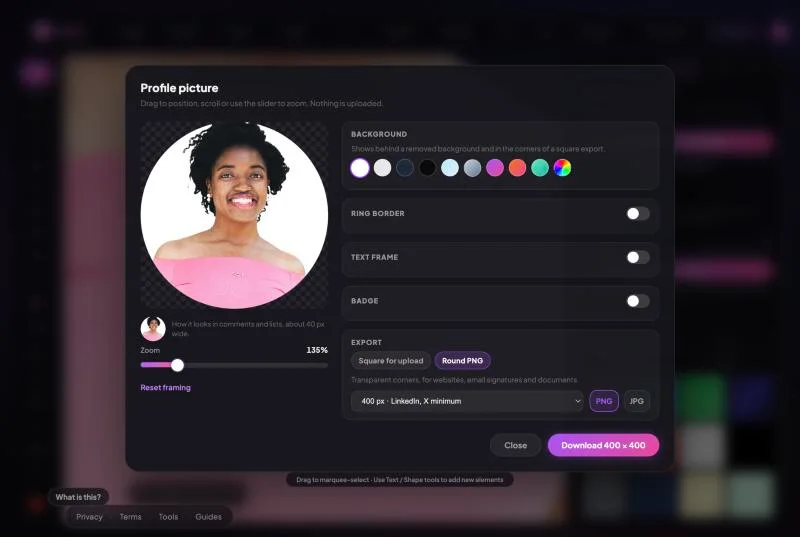
- Drag to position and use Zoom to frame the subject.
- Choose Round PNG, pick 320, 400, 800 or 1080 px, and download.
Step by step
What you get
- True transparent corners: the PNG is a circle on an invisible background.
- Drag-to-position and zoom with a live preview.
- Optional background colour behind a cut-out subject, ring border, text frame and badge.
- Sizes 320, 400, 800 and 1080 px.
- No upload, no signup, no watermark.
Round PNG or square: which do you need?
| Where it goes | Use | Why |
|---|---|---|
| Website, about page, team page | Round PNG | Sits on any background colour without a box |
| Email signature | Round PNG, 200 to 400 px | Small file, no square corners; some email clients flatten transparency to white, which is usually fine |
| Slides, documents and design tools | Round PNG | Drops onto any layout |
| LinkedIn, X, Instagram, Facebook, YouTube | Square | The platform crops its own circle; uploading a round PNG gains nothing |
Why JPG cannot be round
JPG has no transparency, so a "round JPG" is always a circle on a coloured square. If you need the corners to disappear, use PNG (or WebP if your site supports it). EditXo disables JPG when Round PNG is selected for that reason, and fills the corners with your background colour if you switch back to square.
Getting a neat circle
Centre the subject and leave a little space around it; a face that touches the edge of the circle looks cramped. If the background behind the subject is busy, remove it first in the Remove BG tab and choose a plain colour in the maker. For a small round image, such as an email signature, export at twice the size it will be shown so it stays sharp on high-density screens.
Most online editors upload your pictures to their servers. EditXo does all of its processing, including the AI, inside your browser. Read the privacy policy for the full picture.
Frequently asked questions
Are my photos uploaded to a server?
No. EditXo runs entirely inside your browser using your own device. Your images are never uploaded, transmitted or stored by us, so there is nothing for anyone to intercept or leak.
Are the corners really transparent?
Yes. A Round PNG export has fully transparent pixels outside the circle. Drop it on a coloured page to check.
Can I add a border around the circle?
Yes. Turn on Ring border for a solid or gradient ring, and adjust its thickness and the gap.
What size should a round image for an email signature be?
It is usually shown at 80 to 120 px, so export at 200 to 400 px to stay sharp on high-density screens while keeping the file small.
Is EditXo free? Do I need an account?
EditXo is free to use and there is no account to create. Open the editor, drop in a photo and start editing.