HEIC to JPG, converted on your device
iPhone photos are saved as HEIC, which many websites, forms, printers and older computers cannot open. EditXo converts them to JPG inside your browser: nothing is uploaded, there is no account, no file-size cap and no watermark. This page also explains what HEIC is and how to stop the problem at the source.
How to use it
- Open the editor and add the HEIC file. On an iPhone, pick the photo directly from your library; on a computer, use the file you transferred.
- Optionally crop, resize or adjust. For a plain conversion, skip this.
- Click Export, choose JPG, and set quality to 85 for a file that looks identical to the original at roughly half the size.
- Download. The JPG is written by your browser; the HEIC never left your device.
Step by step
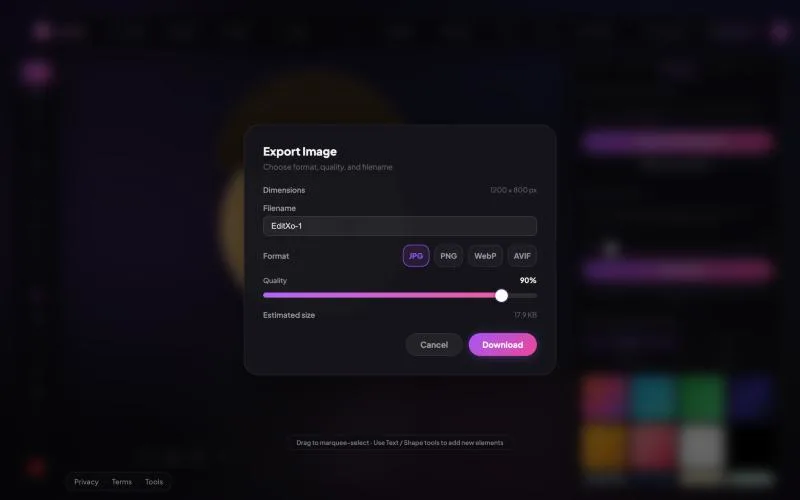
What you get
- Opens HEIC from iPhone and iPad, including Live Photo stills.
- Exports JPG, and also PNG, WebP or AVIF if you prefer.
- Quality slider with a live estimated file size.
- No upload, no signup, no watermark, no 25 MB free-tier cap.
- Batch mode converts many HEIC files to JPG, PNG or WebP at once.
What HEIC is and why your iPhone uses it
HEIC is the file type Apple adopted in 2017 for photos. It stores the same image in roughly half the space of a JPG, supports 10-bit colour, and can hold extra data such as depth maps and Live Photo frames. On an iPhone that is all upside. The downside is compatibility: most websites, government and job-application forms, email clients, printing services, Windows PCs without the HEIF extension, and older Macs cannot read it. Converting to JPG makes the photo work everywhere, at the cost of a somewhat larger file.
Why not use an online converter
Most HEIC converters work by uploading your photo to their server, converting it there, and sending it back. That means your personal photos sit on someone else’s computer, usually with a free-tier limit on size or count, often with a signup wall or a watermark. EditXo decodes the HEIC in your browser using your own device, so the photo is never sent anywhere. You can confirm it in your browser’s developer tools under the Network tab.
What you lose, and what you keep
| Element | HEIC | After converting to JPG |
|---|---|---|
| The image itself | Original | Visually identical at quality 85 or above |
| File size | Smaller | Roughly 1.5 to 2 times larger |
| Live Photo motion | Included | Still frame only |
| Portrait-mode depth data | Included | Dropped; the visible photo keeps its blurred background |
| 10-bit colour | Supported | JPG is 8-bit; invisible for normal viewing |
| Compatibility | Apple and recent Windows only | Everything |
Stop the problem at the source
If you regularly need JPGs, change the camera setting once: iPhone Settings, Camera, Formats, choose Most Compatible. New photos will be saved as JPG. Existing photos stay HEIC and still need converting. Alternatively, when sharing from the Photos app to Mail or Messages, iOS usually converts to JPG automatically; AirDrop and Files do not.
Choosing between JPG, PNG and WebP
JPG is the right answer for almost everyone: it opens everywhere and is small. Choose PNG only if you need an exact, lossless copy or transparency, and expect a file several times larger. Choose WebP if the photo is going on a website you control; it is smaller than JPG and supported by all modern browsers.
Most online editors upload your pictures to their servers. EditXo does all of its processing, including the AI, inside your browser. Read the privacy policy for the full picture.
Frequently asked questions
Does converting HEIC to JPG lose quality?
JPG is a lossy format, so a little detail is discarded, but at quality 85 the difference is not visible. Choose PNG if you need an exact copy, at the cost of a much larger file.
Is there a limit on file size or number of files?
Not one set by a server, because there is no server. The only limit is the memory of your device, which handles full-size iPhone photos without trouble. Batch mode converts many files at once.
Can I convert on my iPhone directly?
Yes. Open editxo.com in Safari, tap Choose File, pick the photo, then Export as JPG. It is saved to your downloads or Files.
Does it work on Windows without installing anything?
Yes. It runs in Chrome, Edge or Firefox with nothing to install, and does not need the Windows HEIF extension.
Are my photos uploaded to a server?
No. EditXo runs entirely inside your browser using your own device. Your images are never uploaded, transmitted or stored by us, so there is nothing for anyone to intercept or leak.
Is EditXo free? Do I need an account?
EditXo is free to use and there is no account to create. Open the editor, drop in a photo and start editing.